
Installation
Components:
-
Unified Tablet
- Setup:
- Wi-fi: Connect your tablet to your wireless network
- Instructions can be found here
- The tablet can also be connected to the LAN by plugging an Ethernet cable into the dock that is provided.
- Teamviewer
- Ensure Teamviewer is running and connected to the internet.
- Click on the blue Teamviewer icon on the desktop
- If connected, you will see a number under your partner ID, this is the number that you will provide to a support representative if assistance is required.
- Apps:
- ImageAnywhere
- Should be on the tablet already, but can also be downloaded from the windows store, here: https://www.microsoft.com/en-us/store/p/imageanywhere/9wzdncrdn1cs
- Teamviewer
- Should be on the tablet already but can also be downloaded at: https://get.teamviewer.com/unifiedhost
-
Unified Link
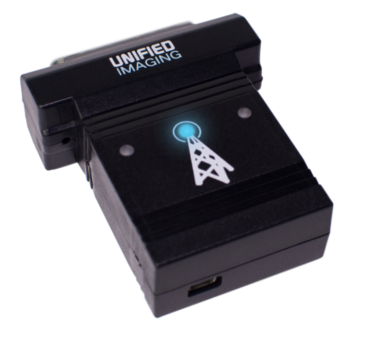
The Unified Link is used to send data from the printer port on the visual field, to the Unified Tablet. The Link has 5 modes:
- Power up (Single BLUE blinking light every 2 seconds):
- Configuration mode (Triple BLUE blinking light pattern):
- During this phase, various configuration commands can be sent to the Link
- Ready (Idle) mode (Double BLUE blinking light pattern):
- During this phase, the link is ready and waiting to receive data
- Receiving mode (Solid GREEN light):
- During this phase the link is accepting data from the Visual field
- Sending Mode (Fast BLUE blinking light):
- During this phase the link is sending data to the tablet
- USB Cable (*for use with the HFA iseries)
- This cable is used to provide the link with extra power. It should be plugged into the USB ports on the visual field
Usage:
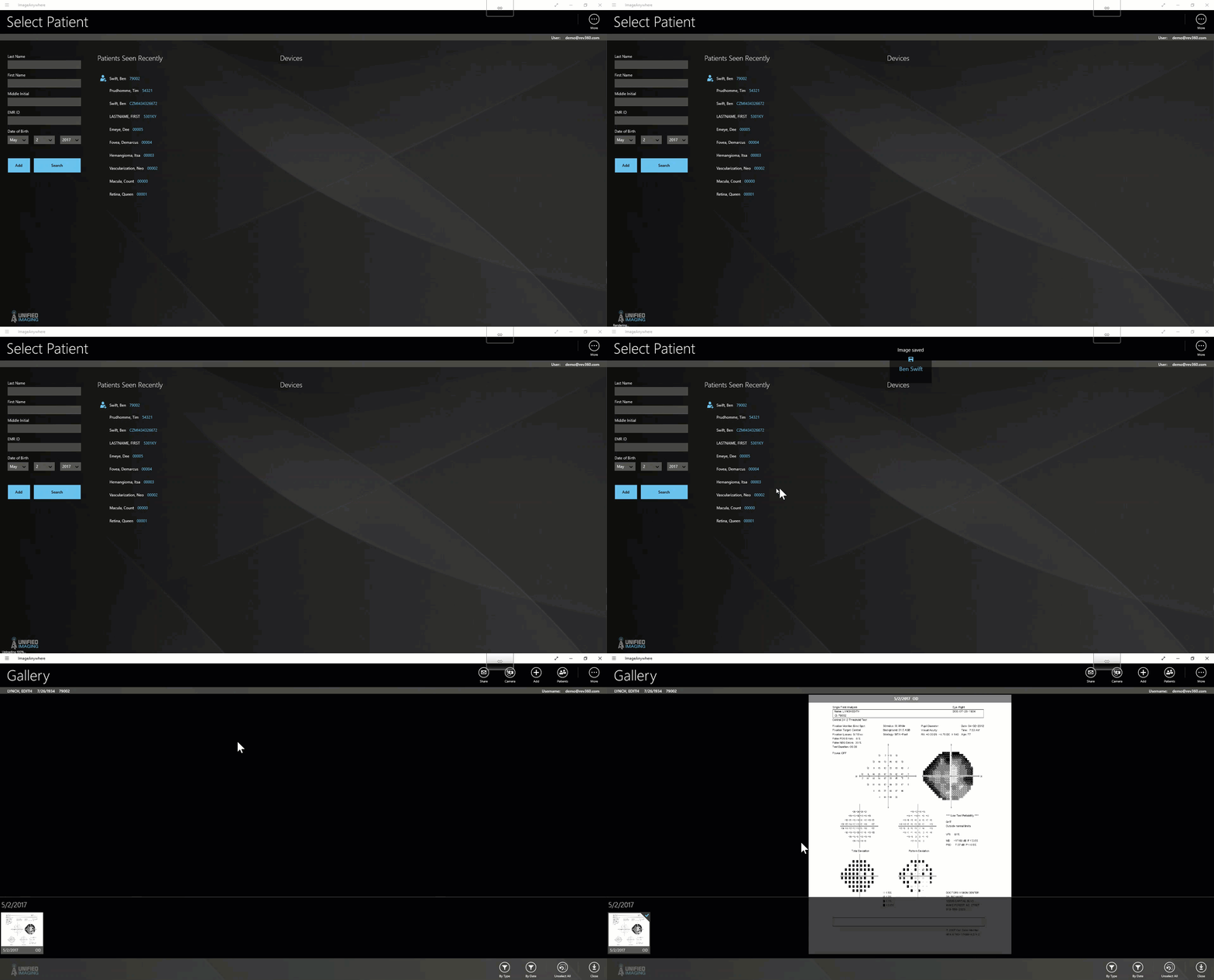
- Print from the HFA
- Ensure that ImageAnywhere is open and logged into on the tablet Login instructions can be found here
- The Link sends data to the tablet
- ImageAnywhere processes and uploads tests
Other Information:
Printing from the Visual Field
Manuals for the Visual Field can be found attached to this article
Contact Unified Support
In addition to the live chat that can be accessed through the web app, questions can also be directed to:
Help Center: https://unifiedimaging.zendesk.com/hc/en-us
Email: support@unified-imaging.zendesk.com
Phone: 844-328-2020
Comments
0 comments
Article is closed for comments.