
Viewing patient images is the core of Unified Imaging. This guide will show you how to open a patient and pull up their images. View this guide to learn how to manipulate images using the different tools we provide.
Opening a Patient
1. Log into https://unified.gallery/
2. Click "Search Patients..." in the top left

3. Enter in the patient details - you may search for:
- Patient name
- EMR ID
4. Click the patient you would like to view that appears in the search panel
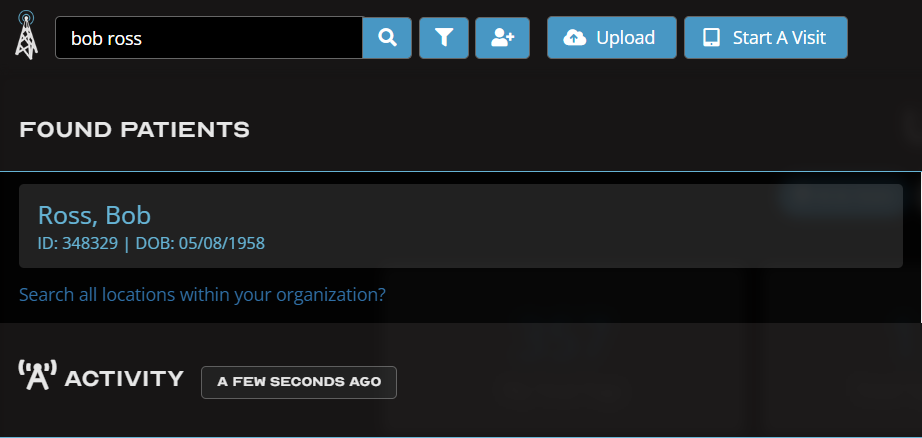
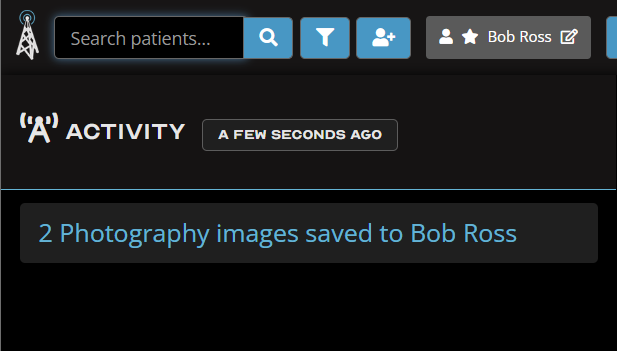
If the patient has had pictures uploaded for today, they will appear under "Activity".
You can click their name instead of manually searching for a patient.
Opening Patient Images
1. Open a patient as outlined above
2. At the bottom of the screen is the thumbnail bar that has all of the historical images with capture dates above them

3. Click on individual pictures to bring them up, or click on the capture date to bring up every picture for that day
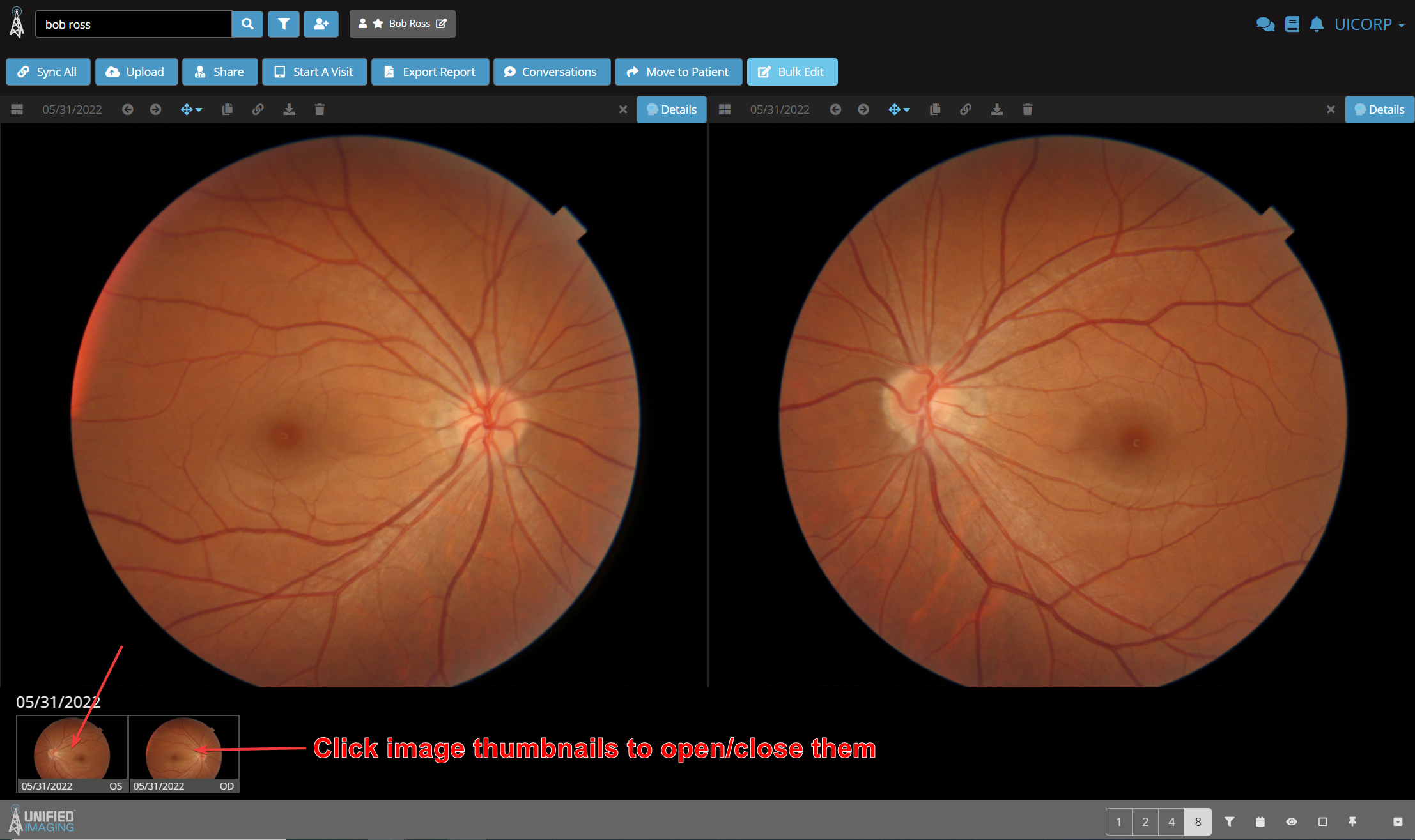
4. To manipulate the images, you can use the tool bar at the top of each image. Right clicking each tool will play a short video on how to use it, or you may also click here.

To view a guide for all of the buttons and tools that appear in the drop down, click here.
5. To control the amount of images that appear on screen at once, click the corresponding numbers in the bottom right. 8 is the default selection.

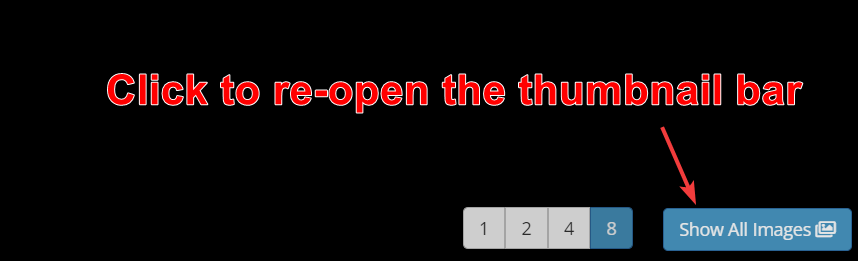
6. If the thumbnail bar disappears, click "Show All Images" in the bottom right
Comments
0 comments
Please sign in to leave a comment.