
Sometimes, patients are entered in more than once.. other times, their names might change. In any case, a merge has to be done.
To do this:
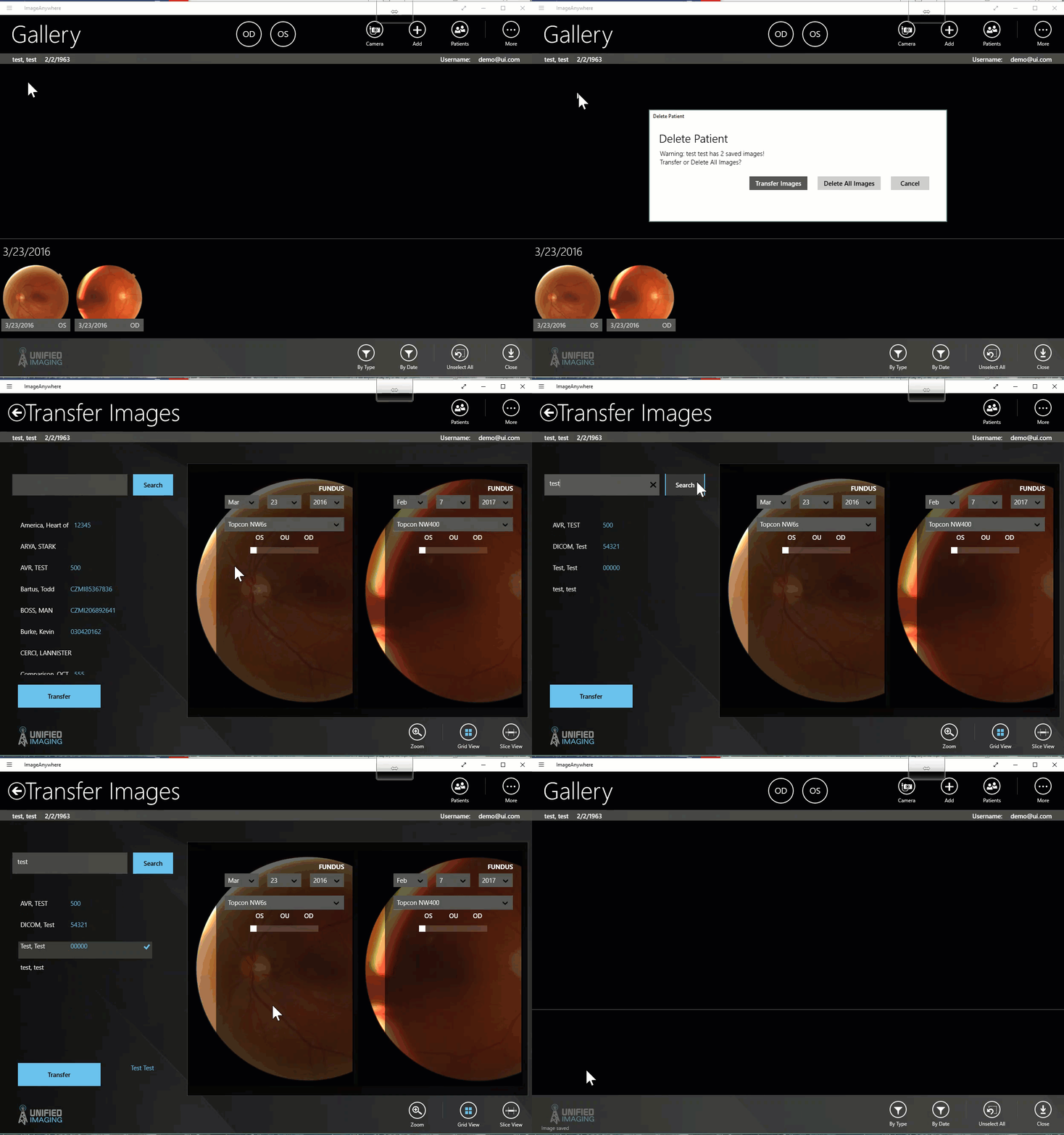
- In the patient's chart, left-click or tap on the patient name.
- Select "Delete Patient"
- If there are images associated with the patient being deleted, a prompt will appear asking if the images should be deleted or transferred. Select "Transfer Images".
- On the transfer images page:
- Search and select the patient that the images should be transferred to
- Select the images that should be transferred to the patient
- To transfer all images, select one image and then select "ctrl" + "A" on the keyboard
- Select "Transfer"
- The app will redirect to the old patient's chart and the images will be moved into the new patient chart.
- From here you can delete the old patient if needed.
Comments
0 comments
Article is closed for comments.