
The ImageAnywhere app for windows is a native windows 8.1 and 10 application that sends images to the Unified Cloud. The windows app is primarily used to capture data and is used for integrating with the instruments in a practice. CloudCAM and connect kits use the Windows app exclusively for sending information to the cloud.
This app can be downloaded from the windows store. https://www.microsoft.com/en-us/store/apps/imageanywhere/9wzdncrdn1cs
The app should be located on the taskbar of the computer/tablet or as a link on the desktop.
Follow these step by step instructions and watch the video to learn how to Export Images
-
To Export images
-
Images can be set to export to a predetermined location or exported to a user specified location on each export.
-
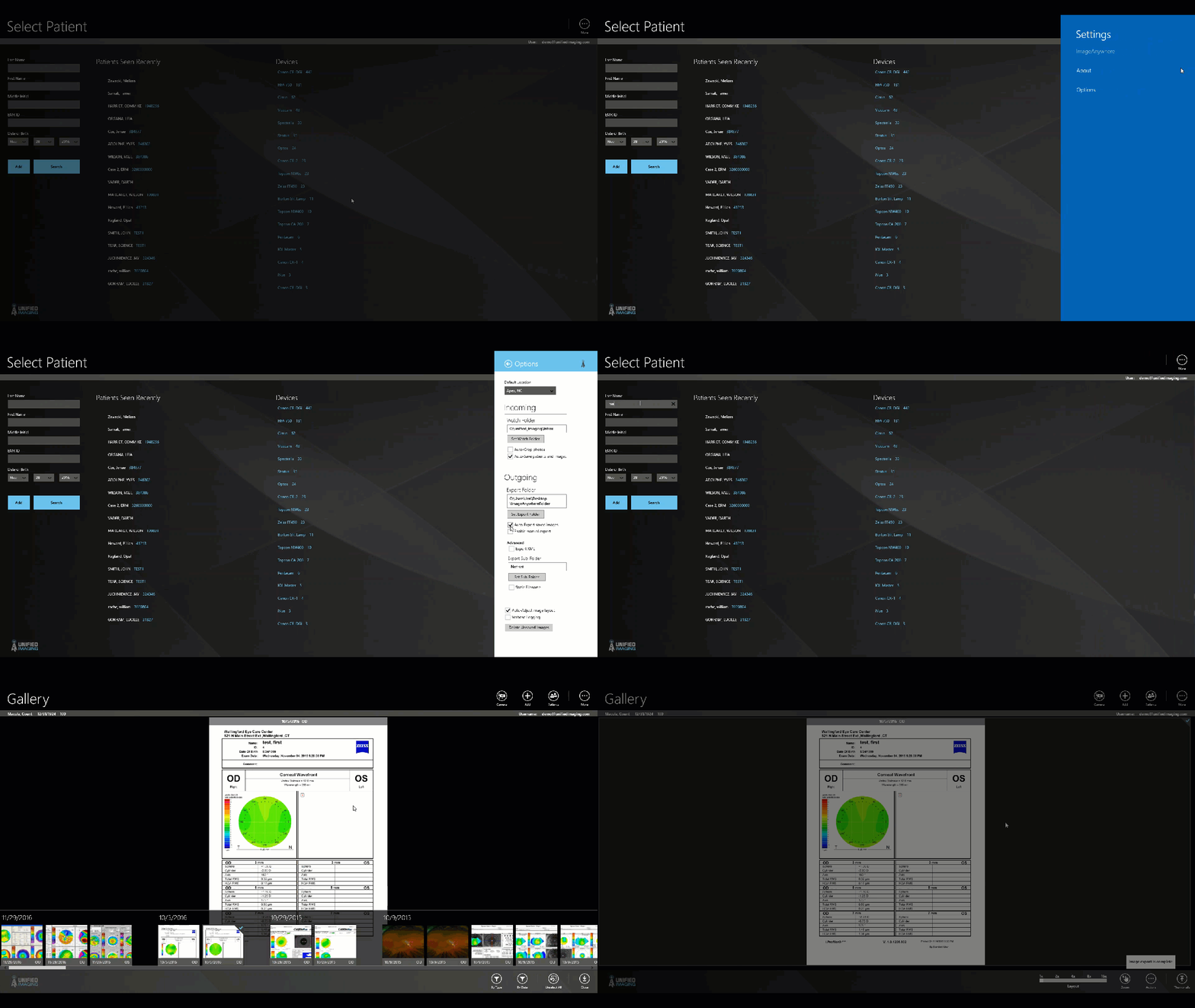
To set a predetermined location:
- Select the “more” button at the top right corner of the app
- Select “settings” then “options”
- In the export section, select the desired export location
- (optional) Select “auto export saved images” to export any saved images automatically to the export location.
-
To set a predetermined location:
- Right click or long click on an image
-
In the context menu, select “export”
- If a there is a preset option for export, the image will be exported there
- If there is no preset option, user will be asked for desired export location.
-
Images can be set to export to a predetermined location or exported to a user specified location on each export.
Comments
0 comments
Article is closed for comments.