
The ImageAnywhere app for windows is a native windows 8.1 and 10 application that sends images to the Unified Cloud. The windows app is primarily used to capture data and is used for integrating with the instruments in a practice. CloudCAM and connect kits use the Windows app exclusively for sending information to the cloud.
This app can be downloaded from the windows store. https://www.microsoft.com/en-us/store/apps/imageanywhere/9wzdncrdn1cs
The app should be located on the taskbar of the computer/tablet or as a link on the desktop.
-
To Save a test
-
Auto-save: This is the default way of getting images into the Unified System.
- Print or save image from the instrument
- Image will be processed by ImageAnywhere and will automatically create a patient or save the image to an existing patient.
- Auto save will use the Patient ID to match if available, it is important that the patient ID in all instruments is the same as the acuity logic patient ID.
- Autosave currently works with:
- HFA non i
- HFA i series
- Iprofiler
- Cirrus 4000
- Cirrus 400
- Cirrus 500
- Cirrus 5000
- Zeiss Visucam
- Optos Daytona
- Optos A1010
- Stratus OCT 3000 (version 6.0 and above)
- Optovue ivue
- Topcon 3DOCT 2000 (coming soon)
- Topcon KR8000 (coming soon)
-
Manual: For use when auto-save is not available for an instrument.
- While in a patient chart:
- Send image to ImageAnywhere by placing it in the folder that ImageAnywhere watches (information about setting this folder can be found here)
- (option 1) Select the “action” button in the bottom right corner
- Select “save all” to save all unsaved images
- (option 2) Right click (or “long click”) on an image
- Select “save selected” from the context menu to save selected images.
- On save image screen:
- Select the appropriate eye for each image
- Select the device
- Select Save
Images can also be uploaded manually through the "+" button: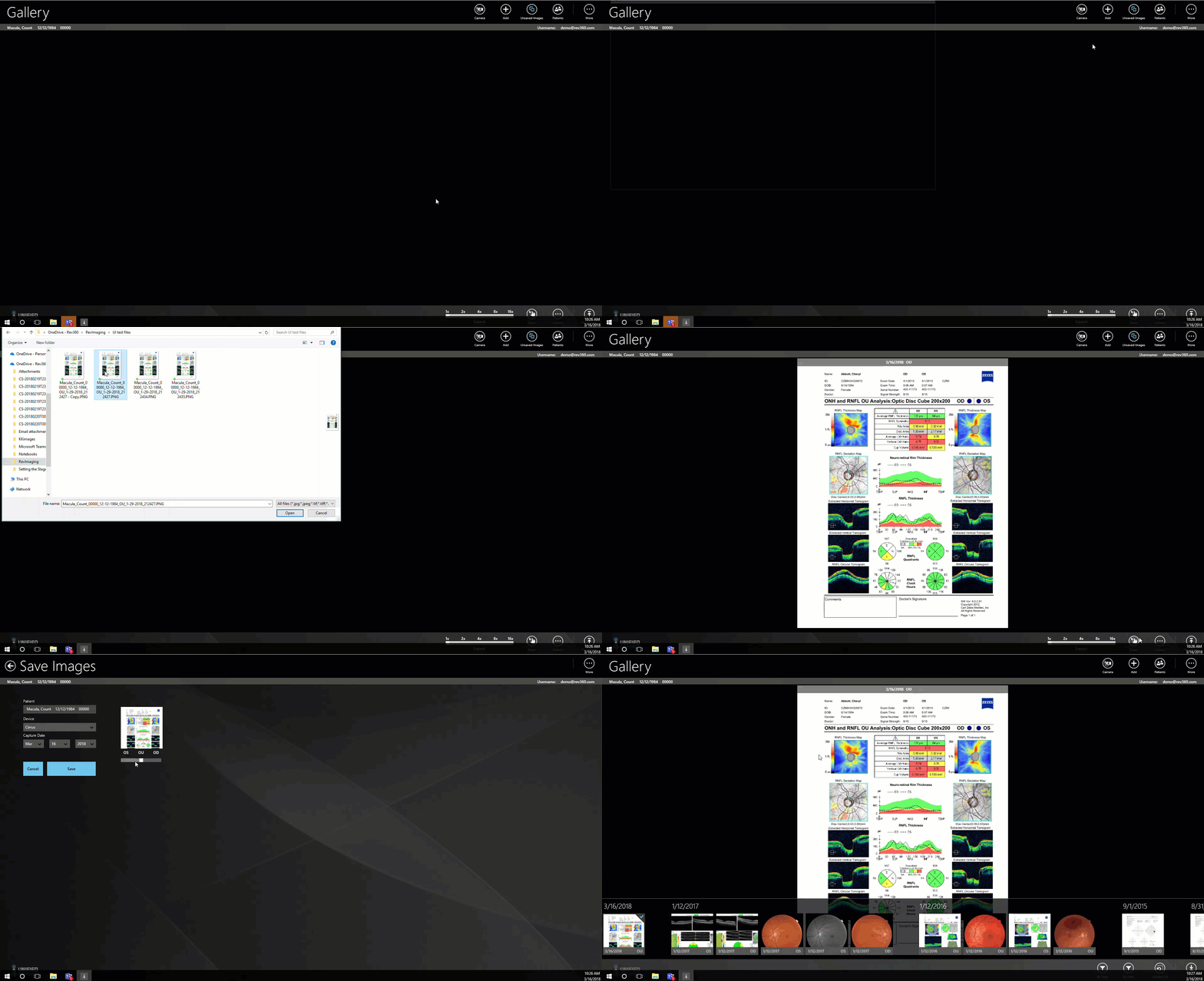
- Select the "add" button (the "+"icon)
- Select the files to be uploaded from a local or network folder
- select "open"
- Save the image(s) like normal
Comments
0 comments
Article is closed for comments.